
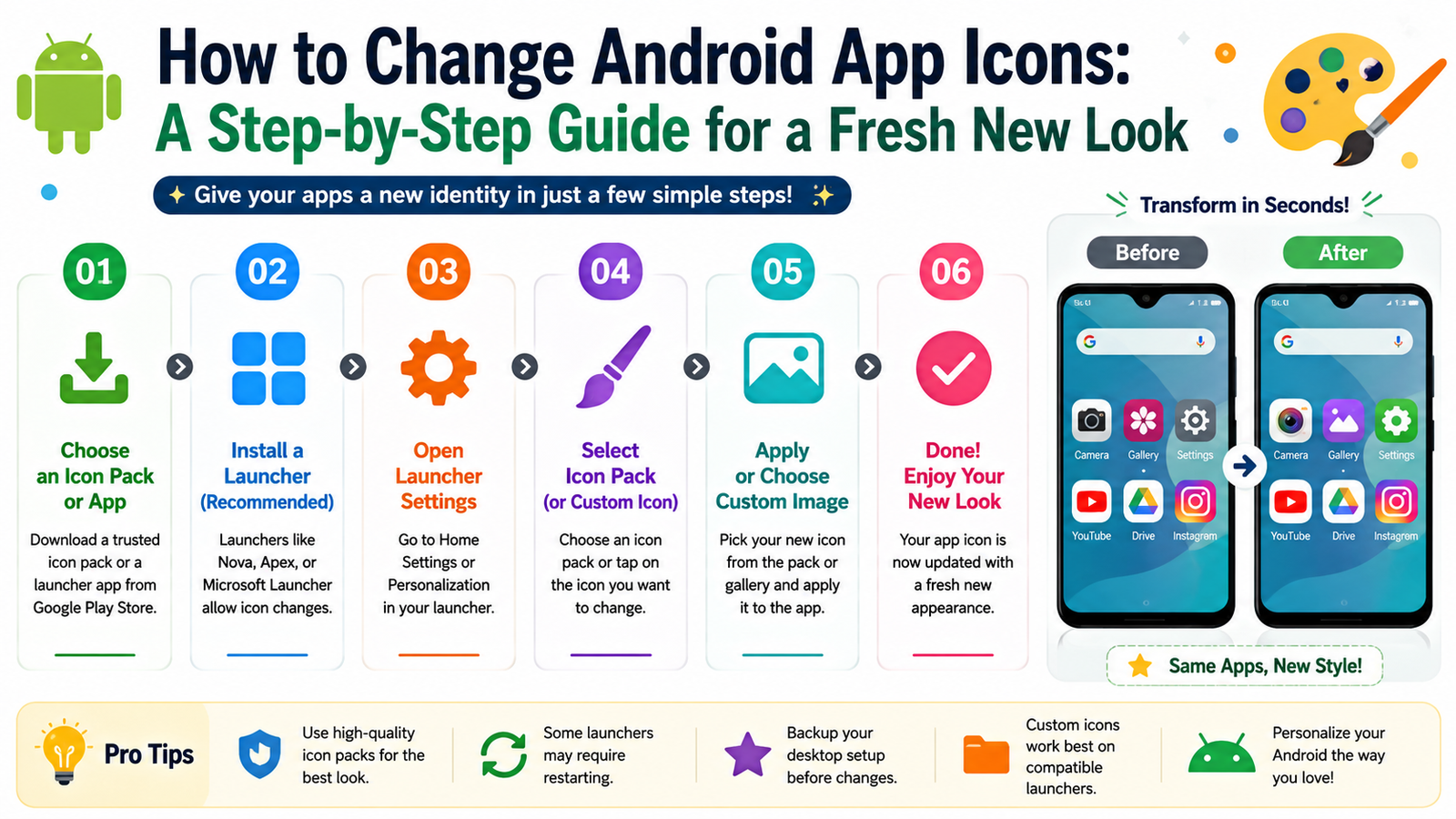
Have you ever looked at your Android phone and wished it had a more stylish or personalized appearance? One of the easiest ways to transform your smartphone is by changing the app icons. Instead of using the default icons that come with your apps, you can customize them to match your favorite theme, wallpaper, or personal style.
The best part is that changing app icons doesn’t require advanced technical knowledge. With the right launcher or built-in customization features, you can redesign your home screen in just a few minutes.
Why Change Android App Icons?
Custom app icons give your phone a completely new appearance. Whether you prefer a clean minimalist setup, colorful themes, dark mode icons, or a premium design, icon customization helps your device stand out.
Some of the main benefits include:
- Gives your phone a unique and modern look.
- Matches your wallpaper and widgets.
- Improves home screen organization.
- Creates a consistent design across all apps.
- Makes your smartphone feel fresh without buying a new device.
Method 1: Use a Custom Launcher
The easiest way to change Android app icons is by installing a launcher. A launcher replaces your default home screen and provides advanced customization features.
After installing a launcher, set it as your default home screen application. Open the launcher’s settings and navigate to the icon customization section. From there, you can install icon packs or replace individual app icons with your preferred designs.
Many launchers also allow users to customize icon size, shape, animation, and label fonts, giving complete control over the home screen.
Method 2: Install an Icon Pack
Icon packs contain hundreds or even thousands of professionally designed icons. These packs are available in many different styles, including:
- Minimal icons
- Material Design icons
- Neon icons
- Dark theme icons
- Gradient icons
- Glass effect icons
- Gaming-style icons
- Cartoon icons
Once downloaded, simply apply the icon pack through your launcher settings. Within seconds, your home screen will have a completely new appearance.
Method 3: Create Custom Icons
If you want something truly unique, you can create custom app icons using your own images.
Most launchers allow you to:
- Select any app
- Tap Edit
- Choose Change Icon
- Pick an image from your gallery
- Save the new icon
For the best results, use transparent PNG images with a resolution of at least 512 × 512 pixels. High-quality images make the icons look sharper on modern Android displays.
Built-in Icon Customization
Several Android smartphone brands include built-in theme stores that support icon customization without requiring third-party launchers.
Manufacturers such as Samsung, Xiaomi, OPPO, Vivo, and Realme allow users to download themes, wallpapers, and icon packs directly from their official theme applications. These options are easy to use and work seamlessly with the phone’s software.
Tips for a Better Home Screen
Changing app icons is only one part of creating an attractive Android setup. Consider these additional customization ideas:
- Use a matching wallpaper.
- Keep the same icon style across all apps.
- Remove unnecessary app shortcuts.
- Organize apps into folders.
- Add useful widgets for weather, calendar, or clock.
- Choose a simple color palette for a clean appearance.
A well-organized home screen not only looks better but also improves productivity by making apps easier to find.
Is It Safe to Change App Icons?
Yes. Changing app icons is completely safe when using trusted launchers or official theme stores. The process only changes how the app shortcut appears on your home screen. It does not modify the actual application, delete your data, or affect app performance.
However, always download launchers and icon packs from trusted sources. Avoid unofficial downloads that may contain harmful software or outdated files.
Will Changing Icons Affect Performance?
Most modern Android devices can handle icon customization without any noticeable slowdown. Lightweight launchers are optimized for speed and battery efficiency, making them suitable even for mid-range smartphones.
If you notice performance issues, try using a simpler launcher or reducing the number of animations and widgets.
Final Thoughts
Changing Android app icons is one of the simplest ways to personalize your smartphone. Whether you use a custom launcher, install an icon pack, or create your own icons, Android offers endless possibilities for customization.
With just a few minutes of setup, you can transform an ordinary home screen into a stylish, organized, and unique interface that reflects your personality. Choose a trusted launcher, explore creative icon packs, and enjoy a fresh new Android experience every time you unlock your phone.