
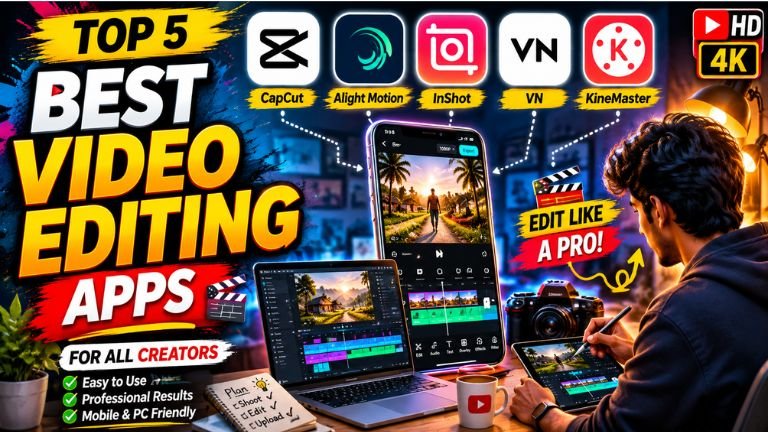
The Ultimate Guide to the Top 5 Mobile Video Editing Apps (2026 Edition)
Creating professional-quality videos is no longer restricted to expensive desktop rigs and heavy studio equipment. With the massive leaps in mobile processing power and AI integration, anyone can produce stunning, studio-grade content for YouTube, Instagram Reels, TikTok, or commercial projects right from their smartphone.
Today’s mobile editing apps aren’t just for basic cutting and pasting—they offer advanced multi-track timelines, precise color grading, AI-driven asset generation, and 4K resolution exports. But with dozens of options in the app stores, which one is actually worth your time and money?
Below is an in-depth review of the top 5 mobile video editing applications in 2026, breaking down their features, pros, cons, and who they are best suited for.
1. CapCut: The King of Short-Form Trends
CapCut (developed by ByteDance) continues to dominate the mobile video editing landscape. While it started as a companion app for TikTok creators, it has evolved into a powerhouse capable of handling complex edits. It perfectly balances a gentle learning curve for beginners with high-end automated tools for seasoned creators.
-
Best For: TikTok creators, Instagram Reels, YouTube Shorts, and anyone wanting fast, trendy edits.
-
Price: Free with optional Pro subscription for premium effects and cloud storage.
Key Features Breakdown
-
AI-Powered Background Removal: Isolate subjects from their backgrounds instantly without needing a physical green screen.
-
Intelligent Auto-Captions: Generate highly accurate, animated subtitles in seconds, which is crucial for retaining viewers on muted social feeds.
-
Massive Asset Library: Access millions of trending audio tracks, sound effects, stickers, and cinematic transitions updated daily.
Pros:
Incredibly fast workflow for social media.
Best-in-class AI voice-to-text and text-to-speech features.
Massive library of pre-made creator templates.
Cons:
Can feel overly tailored to short-form, vertical video.
Advanced features require a Pro subscription.
2. VN Video Editor: The Pro Features, Without the Watermark
VN Video Editor (Vlog Now) has earned a cult following among intermediate filmmakers and vloggers. Its biggest claim to fame is providing an entirely professional, multi-layer editing experience without slapping a giant watermark on your final export—a rarity in the free mobile app market.
-
Best For: Independent filmmakers, travel vloggers, and editors who want clean, precise manual control without an overwhelming interface.
-
Price: Free (highly functional) with optional premium features.
Key Features Breakdown
-
Advanced Speed Curves: Unlike basic speed adjustments, VN allows you to smoothly ramp video speed up and down, creating highly cinematic b-roll sequences.
-
Keyframe Animation: Animate text, stickers, or picture-in-picture layers manually to create custom motion graphics.
-
Professional LUT Support: Import your own
.cubecolor lookup tables (LUTs) to give your footage a specific movie-like color grade.
Pros:
Completely free of watermarks on standard exports.
Highly intuitive, interactive timeline that mimics desktop software.
Excellent performance when handling 4K 60fps footage.
Cons:
The stock music and sound effects library is smaller than CapCut’s.
Fewer automated “one-click” AI templates.
3. Adobe Premiere Rush: The Mobile-to-Desktop Powerhouse
For creators who bounce between editing on their phone during a commute and finishing projects at a desk, Adobe Premiere Rush is the ultimate bridge. It brings the DNA of industry-standard Adobe Premiere Pro into a streamlined, mobile-friendly layout.
-
Best For: YouTubers, creative professionals, corporate content creators, and existing Adobe Creative Cloud subscribers.
-
Price: Free basic tier; premium features included in Adobe Creative Cloud plans.
Key Features Breakdown
-
Cloud Synchronization: Start cutting a video on your iPhone or Android device, and seamlessly open the exact same project file on your desktop in Premiere Pro later.
-
Advanced Audio Ducking: Powered by Adobe Sensei AI, the app automatically lowers background music whenever it detects a human voice speaking.
-
Built-in Motion Graphics: Access professionally designed title templates that can be customized to match your brand colors and fonts.
Pros:
Flawless integration with the professional Adobe ecosystem.
Cross-platform capability (iOS, Android, macOS, Windows).
High-quality audio editing and balancing tools.
Cons:
Requires a relatively powerful smartphone to run smoothly without lag.
The free version limits certain export options and cloud storage capacity.
4. KineMaster: The Ultimate Mobile Studio
If you want granular control over every single pixel, frame, and audio track, KineMaster is the closest thing to a full desktop suite on a mobile screen. It utilizes a unique landscape-oriented interface designed to maximize your screen real estate for precise, layer-based editing.
-
Best For: Tutorial makers, educators, and creators who need heavy special effects and green-screen compositing.
-
Price: Free with watermarks; subscription model to remove watermarks and unlock the asset store.
Key Features Breakdown
-
Advanced Chroma Key: Exceptional green-screen compositing with fine-tuned edge masking and color spill control.
-
Unlimited Multi-Layering: Stack multiple video tracks, images, text layers, and handwriting overlays without bottlenecking performance.
-
Real-Time Recording: Record high-quality voice-overs directly into the timeline while watching your video preview play back.
Pros:
Deepest level of manual control over frame-by-frame editing.
Excellent blending modes for double-exposure and overlay effects.
Robust asset store for transitions and special effects.
Cons:
The landscape-only interface can feel cramped on smaller phone screens.
The free version forces a prominent watermark on your videos.
5. InShot: Simple, Speedy, and Reliable
Not every video requires Hollywood-level color grading or complex multi-cam syncing. InShot is built for the everyday user who needs to take raw footage, trim out the boring parts, add a nice filter, put some music underneath, and share it instantly.
-
Best For: Beginners, casual social media posters, small business owners, and quick daily vlogs.
-
Price: Free with ads/watermarks; affordable one-time purchase or subscription to unlock everything permanently.
Key Features Breakdown
-
Aspect Ratio Canvas Switching: Instantly convert a widescreen video into a square for Facebook, a 9:16 vertical for TikTok, or a 4:5 frame for Instagram with automated background blurring.
-
Intuitive Speed Control: Simple sliders to easily speed up a long clip or create a quick slow-motion effect.
-
Fun Text & Sticker Overlays: Packed with massive, user-friendly sticker packs, animated fonts, and fun emojis to add personality to casual videos.
Pros:
Practically zero learning curve; you can master it in 5 minutes.
Highly optimized for ultra-fast, casual editing.
Lightweight app that runs perfectly even on older or budget smartphones.
Cons:
Lacks advanced features like keyframing or complex color adjustment curves.
The timeline is strictly single-track, making heavy layering impossible.
DownloaD
The Verdict: Which App Should You Download?
To save you from downloading all five, use this quick cheat sheet to find your match:
-
Choose CapCut if you want to make viral TikToks or Reels using AI tools and automated captions.
-
Choose VN Video Editor if you want professional control over cinematic footage without paying a dime or dealing with watermarks.
-
Choose Adobe Premiere Rush if you are a professional content creator who works across both a phone and a computer.
-
Choose KineMaster if you are filming green-screen tutorials or need precision frame-by-frame edits.
-
Choose InShot if you simply need to polish up a quick video for a family event or a local business page with zero hassle.